Note:
- In Any module, the first step is Select Instance (Project). \
- In this module, you can import the template, select the required data, and generate the scorecard from the Candidate Application List module.
1. Configuring a Score Card Template
To configure a new scorecard template:
- Go to the Score Card Template Configuration page.
- Fill in the required fields under the following sections:
Header Section
- Header: Enter the main title for the scorecard.
- Header Subtitle: Enter a subtitle for additional context.
Layer 2: Candidate Details
This section allows entering personal and academic information for the candidate:
- Candidate Name, Father’s Name, Mother’s Name, etc.
- Fields for registration number, enrollment number, subject, roll number, and more.
- Attach Signature, Attach Logo, and Attach QR Code: Drag and drop or use the "Open File Dialog" to upload files.
Layer 3: Additional Notes
- Enter any additional notes or instructions in the rich text editor.
- Use formatting tools to customize the text.
Other Fields
- Details like exam name, date of result, total marks, obtained marks, ranks, and categories can be entered.
- Click Preview to see how the template looks.
- Click Save to save the template or Cancel to discard changes.
2. Selecting a Template
To select a pre-configured template:
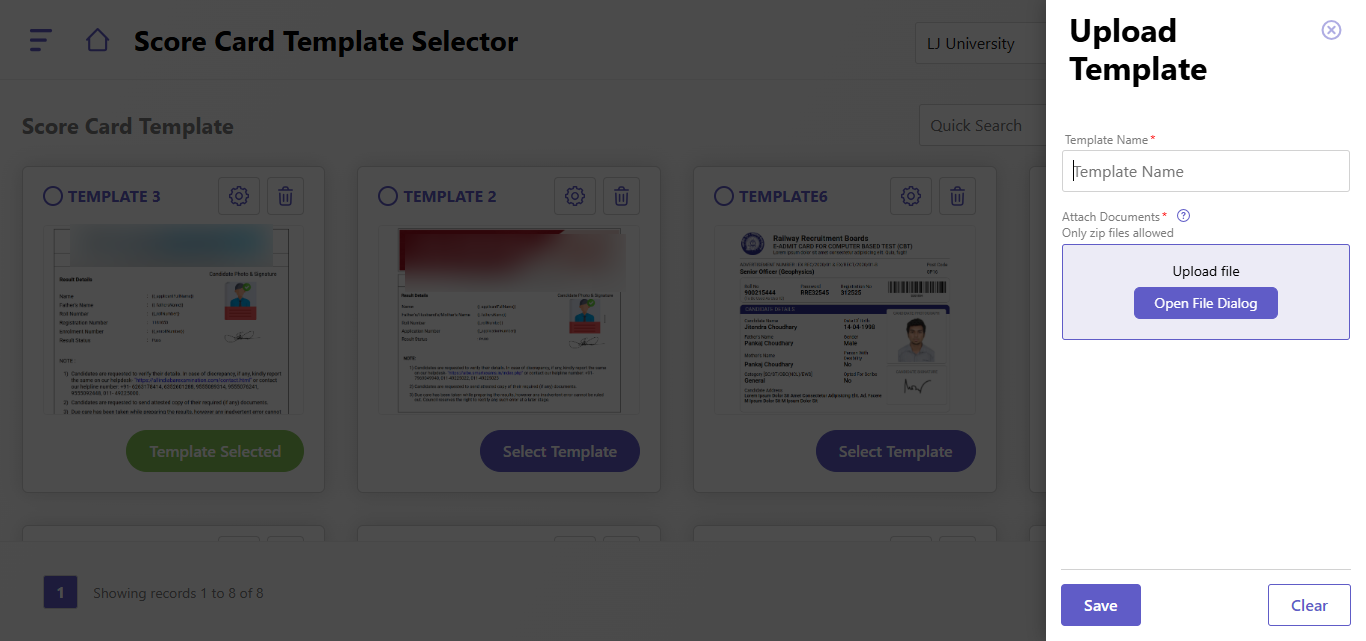
- Navigate to the Score Card Template Selector page.
- Available templates are displayed as cards, showing the design and information structure.
- Actions:
- Select Template: Choose the desired template by clicking the button.
- Edit (Gear Icon): Modify the selected template.
- Delete (Trash Icon): Remove the template from the system.
3. Uploading a Custom Template
- On the Score Card Template Selector page, click Upload Template.
- Fill in the following fields:
- Template Name: Provide a unique name for the template.
- Attach Documents: Upload a .zip file containing the necessary template resources.
- Click Save to upload the custom template or Clear to reset the form.
4. Searching and Sorting Templates
- Use the Quick Search bar to locate a specific template by name.
- Use the Sort by Name dropdown to organize templates alphabetically or by other criteria.
Created with the Personal Edition of HelpNDoc: Make your documentation accessible on any device with HelpNDoc