Note:
- In Any module, the first step is Select Instance (Project).
- Report will be generated based on collections and columns and other function such as agregation, joins and all.
The Generate Report module provides a flexible and user-friendly interface for creating customized reports. Below are the detailed features and functionalities
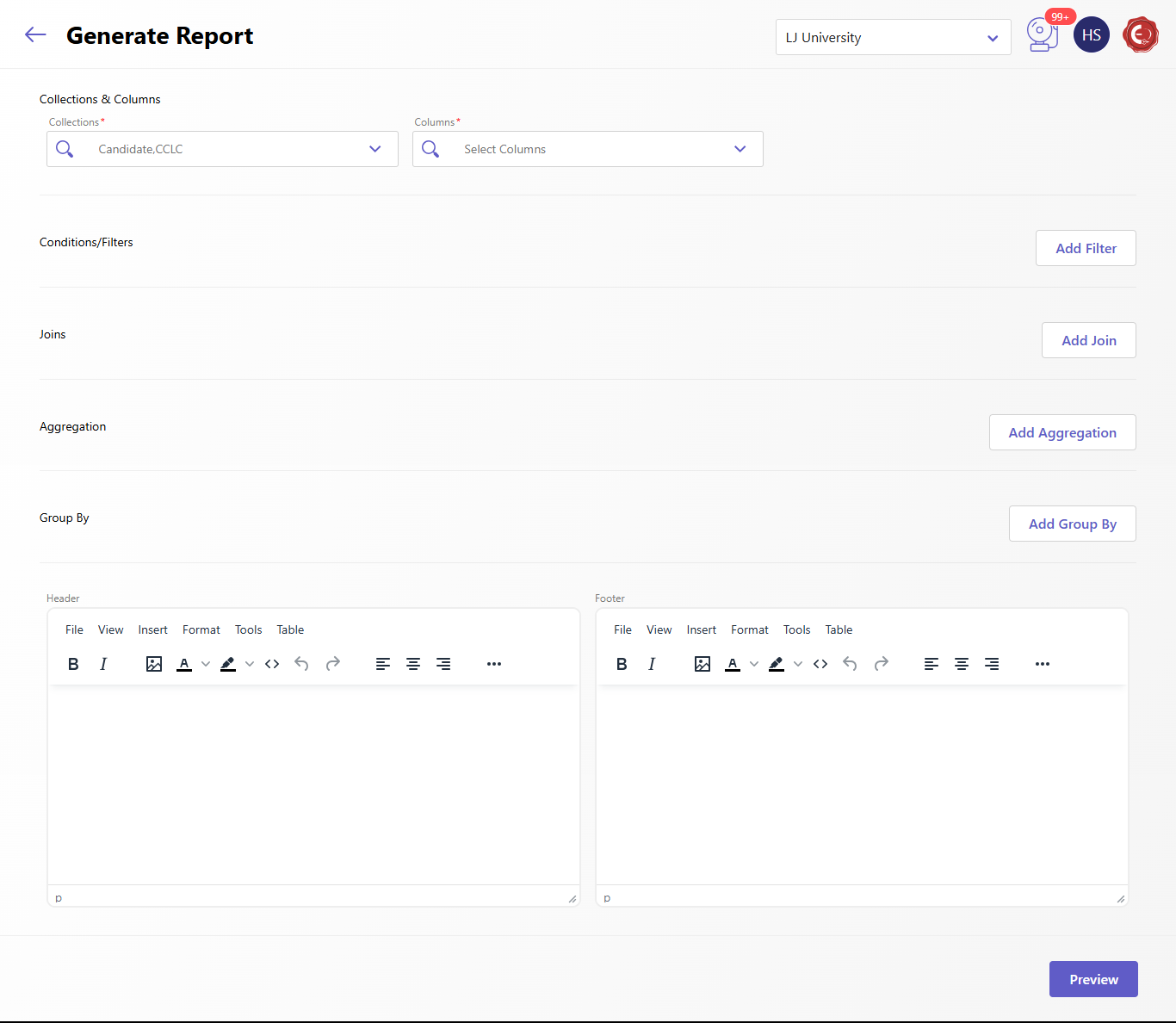
1. Collections & Columns:
- Collections: Allows users to select one or more datasets (e.g., Candidate, CCLC) from which the report will draw data.
- Columns: Users can specify the fields/columns they want to include in the report from the selected collections.
2. Filters:
- Add Filter: Enables users to apply conditions to narrow down the data. For example:
- Filter candidates based on status.
- Include only specific transaction types.
- This ensures the report contains only relevant data.
3. Joins:
- Add Join: Combines data from multiple collections based on a relationship or common key.
- For example, join Candidate data with Transaction data to show candidate details along with their payment history.
4. Aggregation:
- Add Aggregation: Allows users to perform calculations or summaries on the data, such as:
- Total count of candidates.
- Average marks or scores.
- Summing up transaction amounts.
- This feature is useful for data analysis and generating insights.
5. Group By:
- Add Group By: Organizes data into groups based on a selected column or criteria.
- For example, group data by exam center, candidate category, or subject.
Header and Footer Customization:
- Header: Users can add customized content, such as report titles, logos, or descriptions, to appear at the top of the report.
- Footer: Provides space to include disclaimers, page numbers, or any additional notes at the bottom of the report.
Report Preview and Finalization:
- Preview: Users can preview the report before generating it, ensuring accuracy and formatting.
Created with the Personal Edition of HelpNDoc: Easy EBook and documentation generator