The Quiz Configuration interface is divided into two main tabs:
- Configuration: Define quiz parameters such as duration, total marks, and other settings.
- Quiz Questions: Import questions into the quiz.
2. Configuring a Quiz
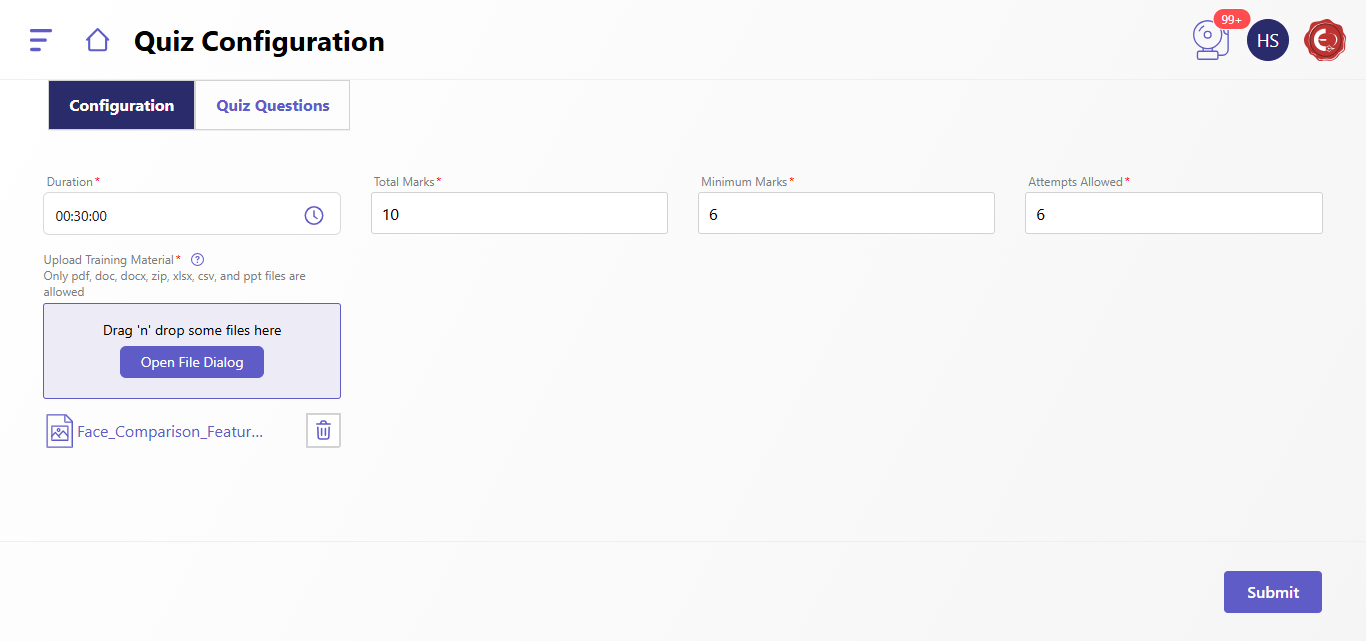
- Navigate to the Configuration tab.
- Fill in the following fields:
- Duration: Set the quiz duration (e.g., 00:30:00 for 30 minutes).
- Total Marks: Specify the maximum marks for the quiz.
- Minimum Marks: Enter the minimum marks required to pass.
- Attempts Allowed: Specify the maximum number of attempts a participant can take.
- Upload Training Material: Drag and drop or upload documents (formats supported: .pdf, .doc, .docx, .zip, .xlsx, .csv, .ppt).
- After completing the details, click Submit to save the configuration.
3. Importing Questions into a Quiz
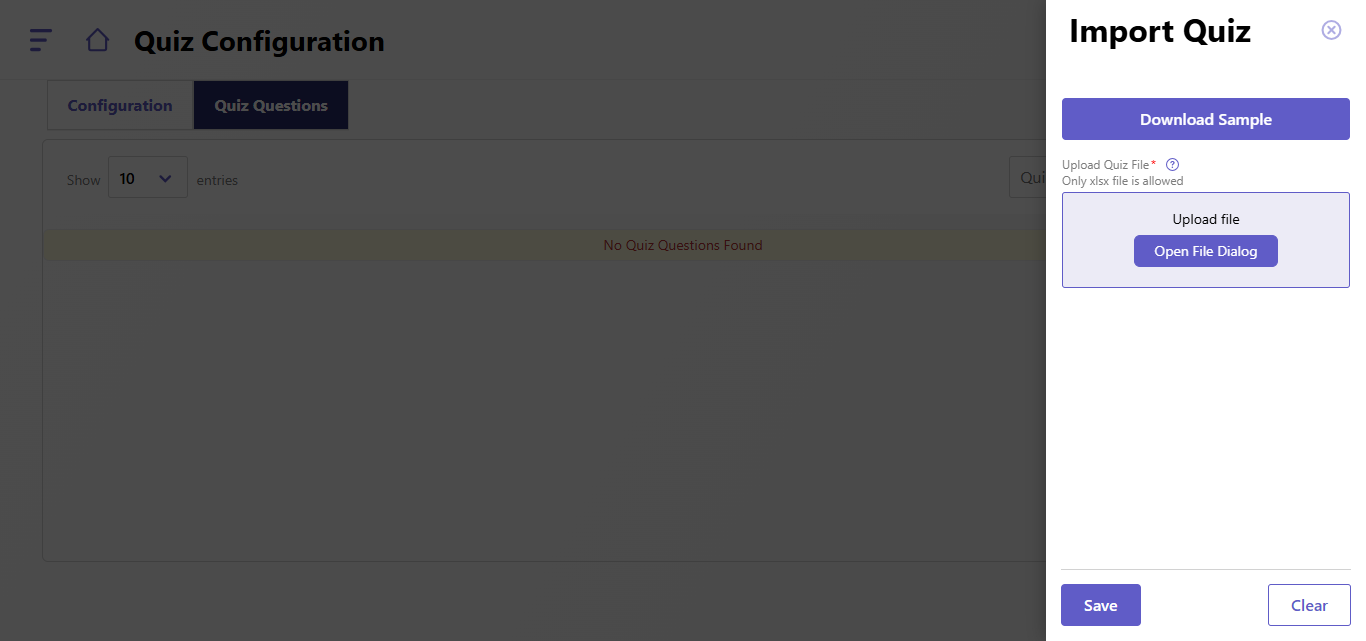
- Navigate to the Quiz Questions tab.
- Click the Import Quiz button to open the import panel.
- Follow these steps to import questions:
- Download Sample: Click Download Sample to download a template for question formatting.
- Upload Quiz File: Use the Open File Dialog button to upload a question file. Supported format: .xlsx.
- Click Save to import the questions or Clear to reset the form.
4. Additional Features
- Drag and Drop: Drag and drop files for easy uploads.
- No Questions Found: If no questions are displayed in the Quiz Questions tab, use the import functionality to add them.
Created with the Personal Edition of HelpNDoc: Effortlessly Spot and Fix Problems in Your Documentation with HelpNDoc's Project Analyzer