Note:
- In Any module, the first step is Select Instance (Project).
- This module will help you to design the question paper for a selected instance.
Overview
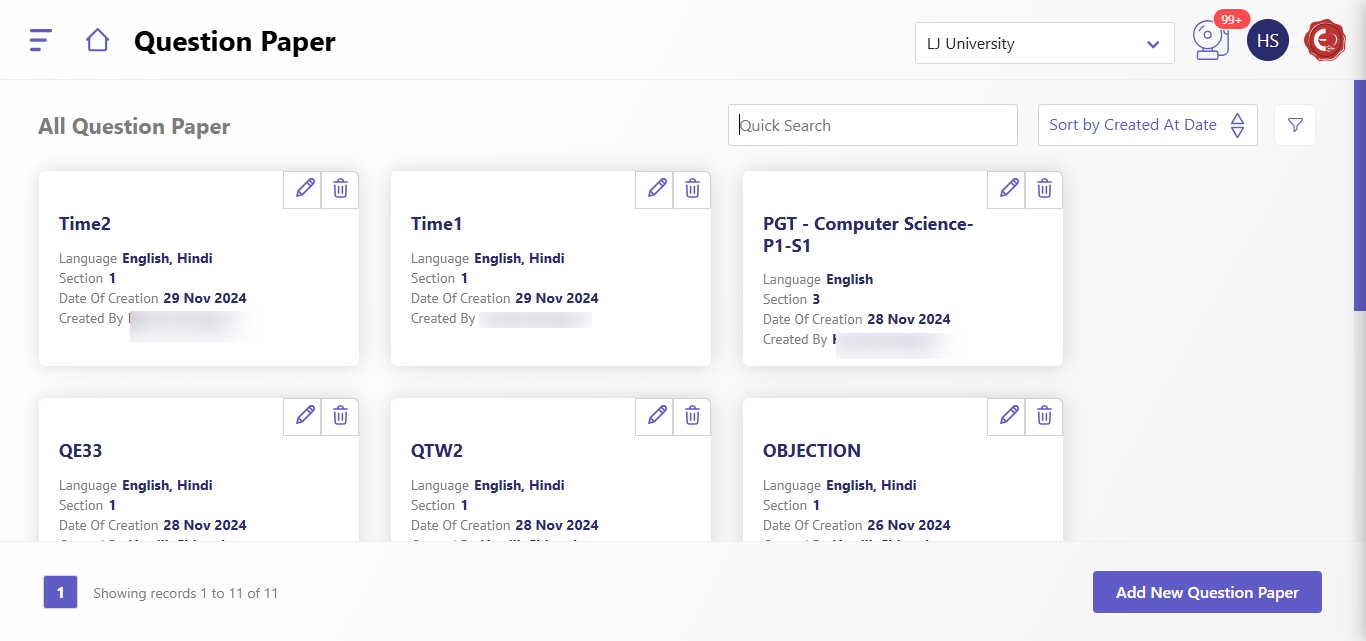
The Question Paper Management system allows users to create, edit, and manage question papers. The interface consists of:
- All Question Papers: Displays a list of created question papers.
- Add New Question Paper: Allows creating a new question paper with customizable parameters.
1. Managing Existing Question Papers
Viewing Question Papers
- Each question paper is displayed as a card with the following details:
- Name: Title of the question paper.
- Language: Supported languages (e.g., English, Hindi).
- Section: The section associated with the paper.
- Date of Creation: Date when the question paper was created.
- Created By: Name of the creator.
Actions
- Edit (Pencil Icon): Modify the details of the selected question paper.
- Delete (Trash Icon): Remove the question paper permanently.
- Search and Sort:
- Use the Quick Search bar to find a specific question paper.
- Use the Sort by dropdown to sort question papers by creation date or other criteria.
2. Adding a New Question Paper
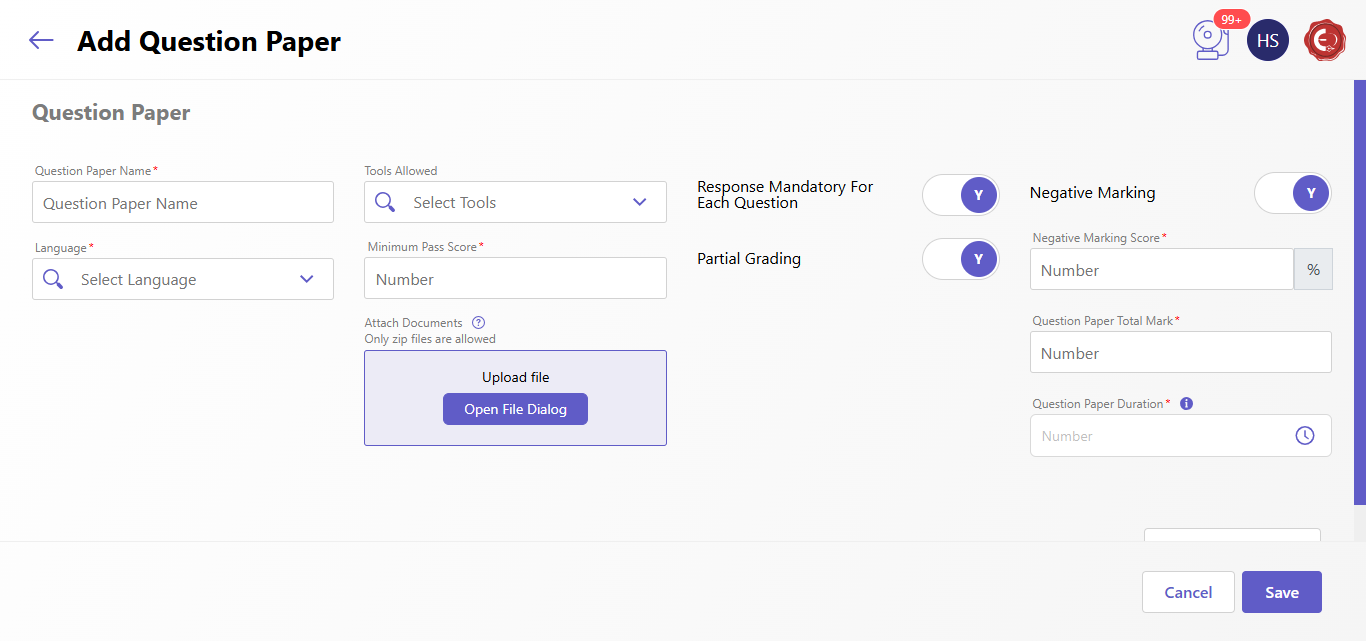
To create a new question paper:
- Click Add New Question Paper.
Step-by-Step Instructions
- General Information
- Question Paper Name: Enter a title for the question paper.
- Tools Allowed: Specify tools (if any) allowed during the exam (e.g., calculator, ruler).
- Language: Choose the language(s) for the question paper (e.g., English, Hindi).
- Attach Documents: Upload additional reference materials in a ZIP file.
- Scoring and Grading
- Minimum Pass Score: Define the minimum score required to pass.
- Negative Marking: Toggle Yes (Y) or No (N) to enable or disable negative marking.
- If enabled, specify the Negative Marking Score (in percentage).
- Partial Grading: Toggle Yes (Y) or No (N) to allow partial grading for multi-part questions.
- Question Paper Details
- Total Marks: Enter the total marks for the question paper.
- Duration: Specify the duration of the question paper (in minutes).
- Sections
- Click Add More Section to divide the question paper into multiple sections.
3. Saving or Cancelling
- Click Save to save the new question paper or changes to an existing one.
Created with the Personal Edition of HelpNDoc: Single source CHM, PDF, DOC and HTML Help creation