Note:
- In Any module, the first step is Select Instance (Project).
- The Question Master module organizes and manages subjects, categories, types, and difficulty levels for question papers. It displays subjects with their codes and provides options to edit or delete entries. Users can also add new records for efficient question bank management.
Overview
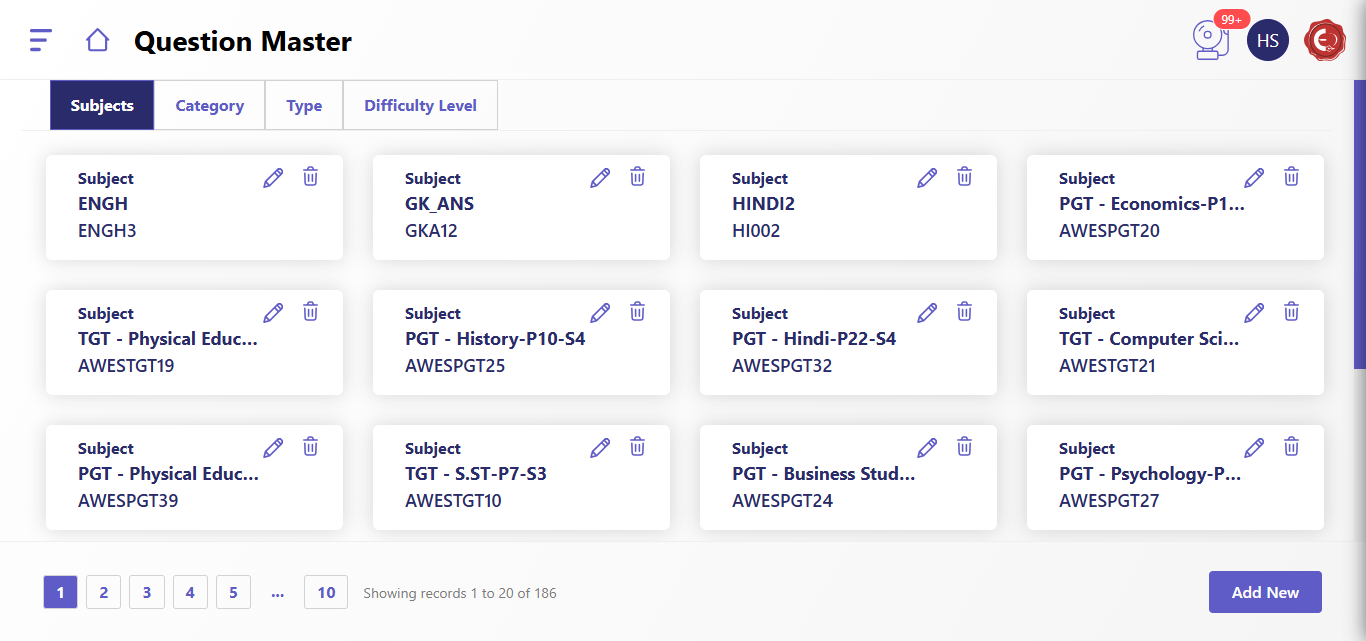
The Question Master System is divided into the following tabs:
- Subjects: Manage subjects.
- Category: Organize subjects into categories.
- Type: Define question types.
- Difficulty Level: Assign difficulty levels to questions.
1. Managing Subjects
The Subjects tab allows users to create, edit, or delete subjects.
Actions
- View Subjects: Subjects are displayed as cards, with their name and code.
- Edit (Pencil Icon): Modify the subject name or code.
- Delete (Trash Icon): Remove the subject from the system.
Adding a New Subject
- Click Add New.
- Enter the following details:
- Subject Name (e.g., Mathematics, Science).
- Subject Code (unique identifier for the subject).
- Click Add to save the subject or Clear to reset the form.
2. Managing Categories
The Category tab is used to group subjects into categories.
Actions
- View Categories: Each category is shown with the associated subject and category code.
- Edit (Pencil Icon): Modify the category name or code.
- Delete (Trash Icon): Remove the category.
Adding a New Category
- Click Add New.
- Enter the following details:
- Select Subject: Choose the subject to associate with the category.
- Category Name (e.g., Algebra, Physics).
- Category Code (unique identifier for the category).
- Click Add to save the category or Clear to reset the form.
3. Managing Question Types
The Type tab defines the types of questions available in the system.
Available Question Types
- Radio Button: Single answer selection.
- Multiselect Dropdown: Multiple answer selections.
- Text Box: Open-ended responses.
- Checkbox: Multiple answers with checkboxes.
- Dropdown: Single answer selection from a dropdown menu.
Each type specifies whether multiple answers are allowed.
4. Managing Difficulty Levels
The Difficulty Level tab lets users define the complexity of questions.
Available Difficulty Levels
- Very Easy: Difficulty code 1.
- Easy: Difficulty code 2.
- Moderate: Difficulty code 3.
- Hard: Difficulty code 4.
These levels help in organizing and evaluating questions based on their complexity.
Created with the Personal Edition of HelpNDoc: Free EBook and documentation generator