The Payment Details table displays all payment records with the following columns:
- Date: Payment date.
- User: Name of the user associated with the payment.
- Roles: Role of the user (e.g., Centre Admin, Kiosk).
- Payment For: Purpose of the payment (e.g., Travel, Bills, Food).
- Status: Current status of the payment (e.g., Paid, Pending, Rejected).
- Amount: Payment amount.
- Mode: Mode of payment (e.g., Online, Cheque, Bank Draft, Cash).
- Type: Type of payment (e.g., regular, one-time).
- Actions: Edit or delete a payment record.
Actions
- Edit (Pencil Icon): Modify the details of an existing payment.
- Delete (Trash Icon): Remove a payment record.
2. Adding a New Payment
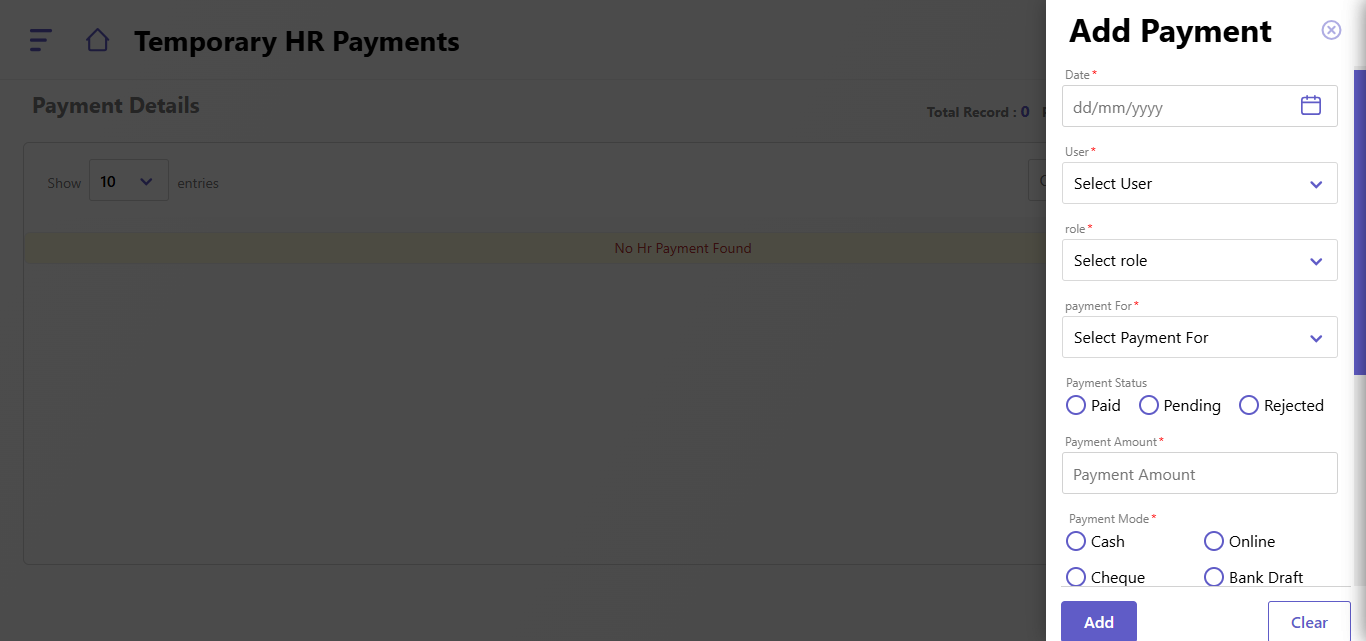
To add a new payment:
- Click the Add Payment button on the bottom right of the page.
- Fill out the following fields in the form:
- Date: Select the payment date from the calendar.
- User: Choose the user from the dropdown list.
- Role: Select the role associated with the user.
- Payment For: Choose the purpose of the payment (e.g., Travel, Bills).
- Payment Status: Select the current status (Paid, Pending, or Rejected).
- Payment Amount: Enter the amount to be paid.
- Payment Mode: Choose the payment mode (Cash, Online, Cheque, Bank Draft).
- Payment Type: Specify the payment type.
- Approving Authority: Enter the name of the approving authority.
- Remarks: Add any additional notes or comments.
- Click Add to save the payment record or Clear to reset the form.
3. Searching and Filtering Payments
- Use the Quick Search bar to locate specific payment records by keywords.
- Adjust the Show Entries dropdown to change the number of records displayed on the page.
4. Sorting and Status Overview
- Sorting: Click on the column headers to sort records (e.g., by Date, Amount, or Status).
- Status Summary: At the top-right corner, view the summary of payment statuses:
- Total Record: Total number of payments recorded.
- Paid: Number of payments marked as "Paid."
- Pending: Number of payments awaiting processing.
- Rejected: Number of rejected payments.
Created with the Personal Edition of HelpNDoc: Maximize Your Documentation Capabilities with HelpNDoc's Project Analyzer