The Temporary HR Roles interface displays existing roles with the following details:
- Role Title: Name of the role (e.g., Centre Admin, KIOSK).
- Reporting To: Name of the supervisor or manager the role reports to.
- Users Assigned: Number of users currently assigned to the role.
- Status: Indicates whether the role is active.
Actions
- Edit Role (Pencil Icon): Modify details of an existing role.
2. Adding a New Role
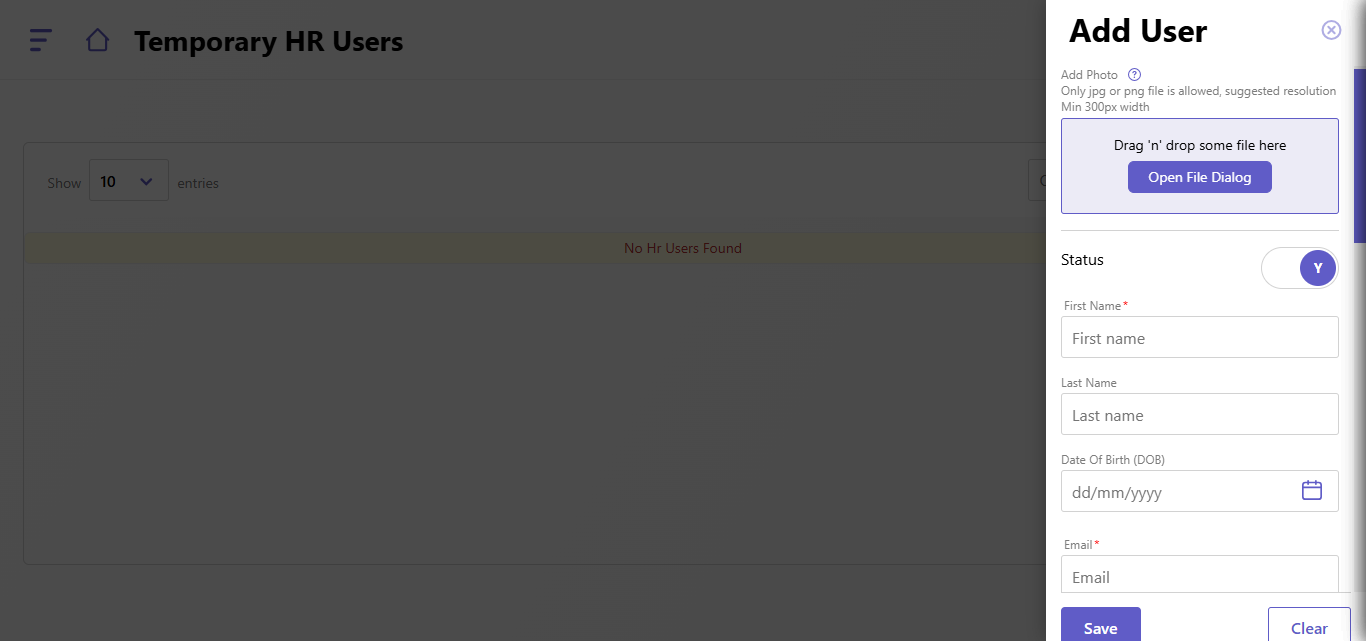
To create a new role:
- Click the Add New Role button on the right-hand side.
- Fill out the form:
- Role Title: Enter the name of the role (e.g., "KIOSK Operator").
- Reporting To: Select the supervisor or manager to whom the role will report.
- Activate?: Toggle "Yes" (Y) to activate the role or leave it inactive.
- Click Add to save the new role or Clear to reset the form.
3. Searching Roles
- Use the Quick Search bar to find a specific role by name or other keywords.
4. Managing Existing Roles
- To edit a role, click the Pencil Icon on the role card, make the necessary changes, and save.
- The number of users assigned to a role is displayed on the role card, providing a quick overview of its utilization.
Created with the Personal Edition of HelpNDoc: From Word to ePub or Kindle eBook: A Comprehensive Guide