The Voucher Details table displays all existing voucher records with the following columns:
- ID: Unique identifier for the voucher.
- Date: The date when the voucher was created or uploaded.
- Uploaded By: Name of the user who uploaded the voucher.
- Payment For: The purpose of the voucher (e.g., Food, Bills, Electricity).
- Attachment: Links to uploaded voucher documents (e.g., images).
- Amount: The monetary value associated with the voucher.
- Remarks: Any additional comments or notes about the voucher.
2. Adding a New Voucher
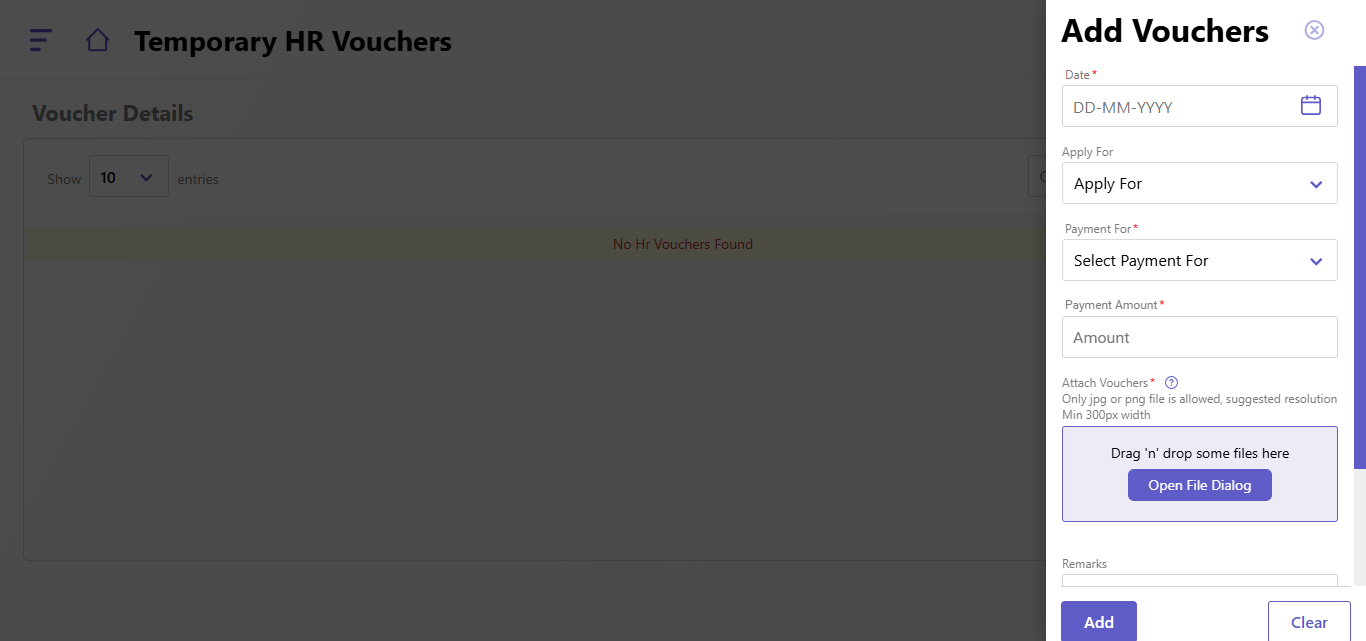
To add a new voucher:
- Click the Add Voucher button on the right-hand side.
- Fill out the form:
- Date: Select the voucher date from the calendar.
- Apply For: Choose the entity or purpose the voucher applies to.
- Payment For: Specify the purpose of the voucher (e.g., Food, Bills).
- Payment Amount: Enter the amount for the voucher.
- Attach Vouchers: Drag and drop files or use the "Open File Dialog" button to upload vouchers (only .jpg or .png files are allowed with a suggested resolution of at least 300px width).
- Remarks: Add any additional notes or comments (optional, up to 200 characters).
- Click Add to save the voucher or Clear to reset the form.
3. Searching Vouchers
- Use the Quick Search bar to locate specific vouchers by ID, date, or purpose.
4. Viewing and Managing Attachments
- Click on the Attachment link in the table to view or download the associated voucher document.
Created with the Personal Edition of HelpNDoc: Free PDF documentation generator