Note:
- Template module is used to create new templates within the examination process.
- The specific purpose and functionality of the templates would depend on the context of the system where this screen is used.
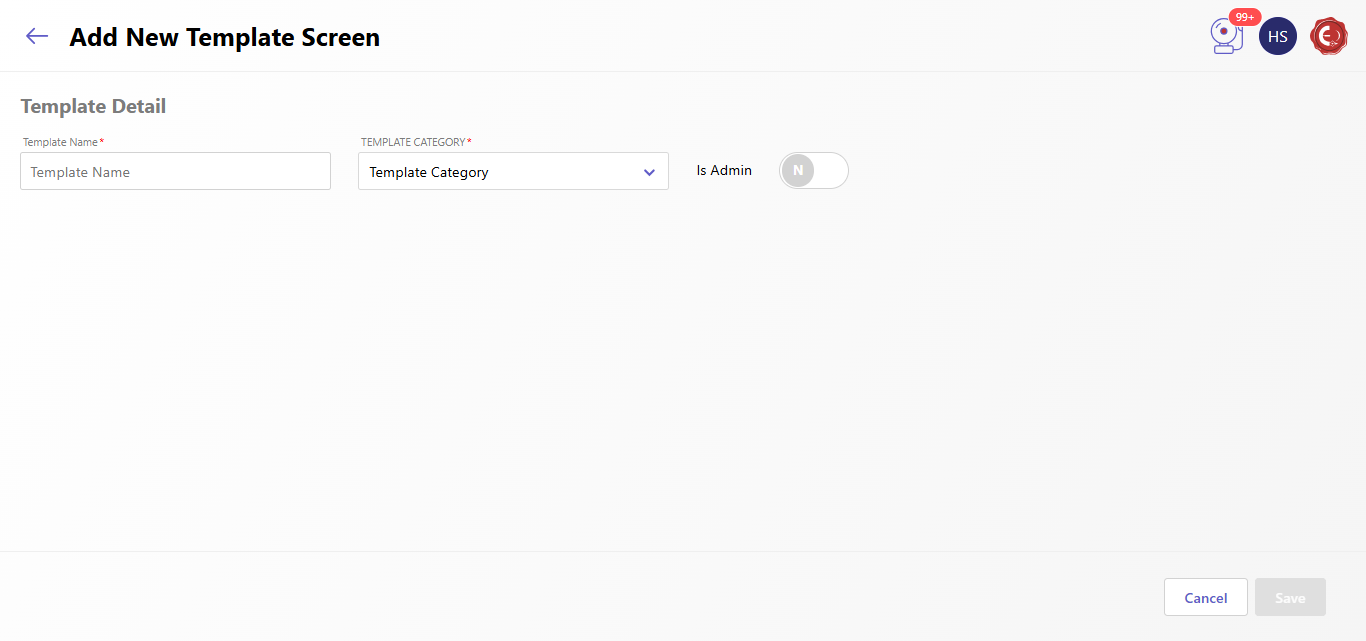
Let's continue the process to "Add New Template Screen".
When you will click on the "Add New Template Screen" button, then fill the details as given below"
- Template Name:
- This field requires the user to provide a name for the new template.
- Template Category:
- This field allows the user to select a category for the template from a dropdown list.
- The categories are likely predefined and provide a way to organize templates based on their purpose or type.
- Is Admin:
- This is a toggle switch that allows the user to specify whether the template is for administrative use or not.
- This could control the visibility or accessibility of the template to different user roles.
- Cancel and Save Buttons:
- The "Cancel" button allows the user to discard any changes made and exit the form.
- The "Save" button submits the form, creating a new template with the provided details.
Created with the Personal Edition of HelpNDoc: Make Documentation a Breeze with HelpNDoc's Clean and Efficient User Interface