The All Exams module provides a centralized platform for managing exams and creating new ones. Here’s a detailed breakdown:
All Exams Dashboard:
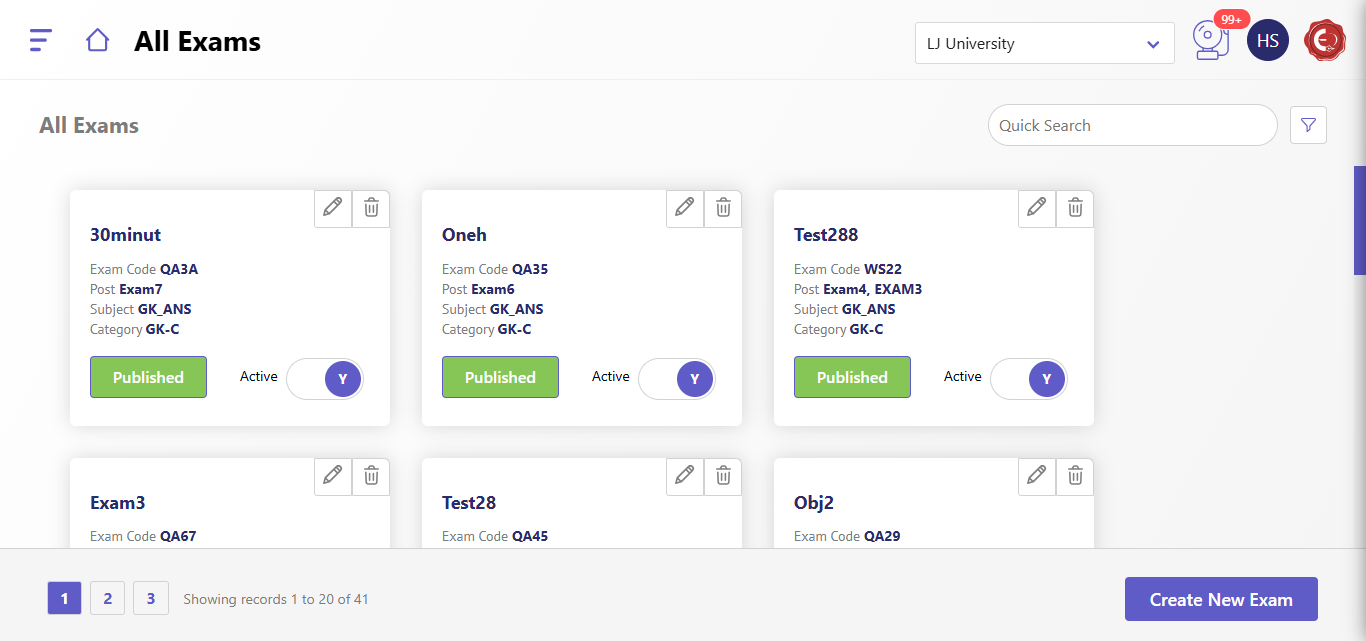
Exam Cards:
- Displays key details for each exam:
- Exam Name and Code: Unique identifiers for the exam.
- Post: Indicates the associated post(s) for the exam.
- Subject and Category: Displays the subject and category under which the exam falls.
- Status: Highlights whether the exam is "Published" or in draft.
- Active Toggle: Allows administrators to activate or deactivate exams with a switch.
Actions:
- Edit (Pencil Icon): Opens the exam for modifications.
- Delete (Trash Icon): Removes the exam from the system.
Search and Pagination:
- Quick Search: Filters exams based on keywords.
- Pagination: Navigates through multiple exam entries efficiently.
Create New Exam:
- The "Create New Exam" button leads to the Add Exam interface.
Add Exam Interface:
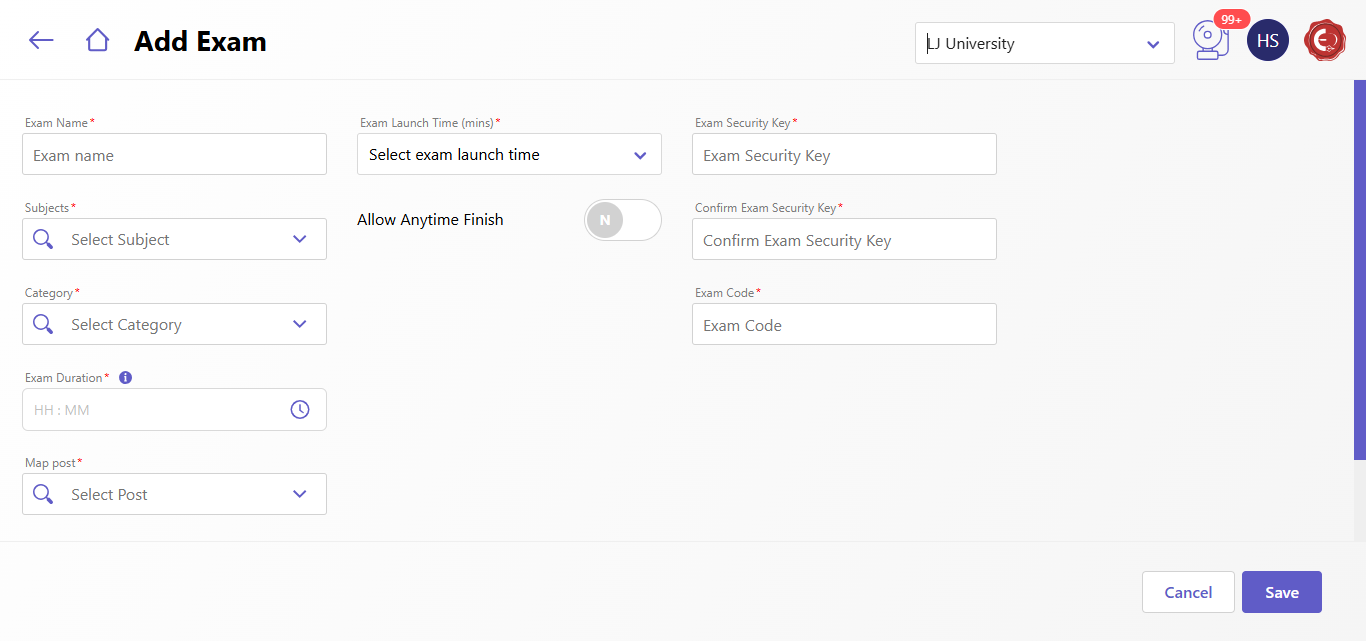
Exam Configuration:
- Exam Name: Define the name of the exam.
- Launch Time: Set the scheduled launch time.
- Exam Security Key: Ensure exam security with a unique key.
- Allow Anytime Finish: Toggle for flexibility in finishing time.
Details and Mapping:
- Subject and Category: Assign relevant subject and category to the exam.
- Duration: Set the total exam duration in HH:MM format.
- Post Mapping: Link the exam to specific posts.
Actions:
- Save: Finalize and save the exam configuration.
- Cancel: Exit without saving changes.
Created with the Personal Edition of HelpNDoc: Effortlessly Publish Your Word Document as an eBook