The HR Instance Mapping module provides a comprehensive interface to manage and assign HR personnel to specific roles, centers, and events effectively. Below are the detailed functionalities and features:
HR Instance Mapping Dashboard:
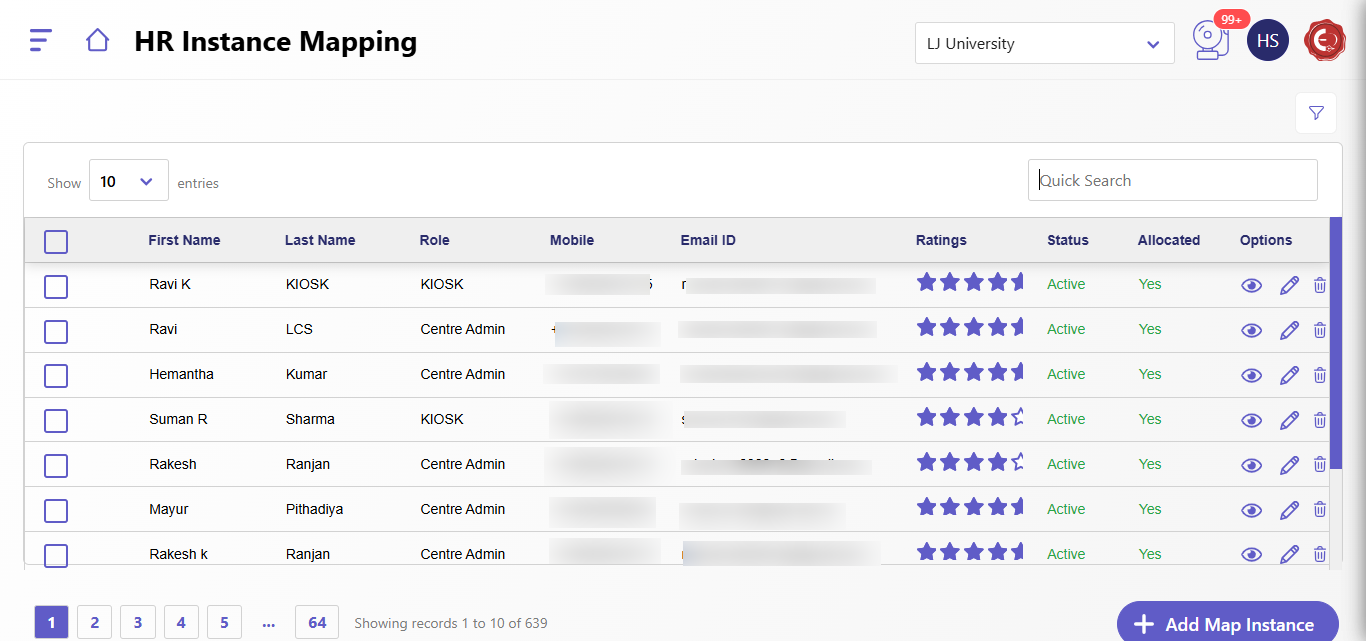
- Details of HR Personnel:
- Displays a list of HR personnel with details such as:
- First Name and Last Name: The name of the HR staff.
- Role: The specific role assigned to the HR personnel (e.g., KIOSK, Centre Admin).
- Mobile Number: The contact number for quick communication.
- Email ID: The email address for official correspondence.
- Ratings: A rating system (represented with stars) to assess performance or feedback of HR personnel.
- Status: Indicates whether the HR personnel is active or inactive.
- Allocated: Specifies whether the HR personnel is currently allocated to any instance or center.
- This provides a clear and concise overview of the HR resources available.
- Search and Filter Options:
- The Quick Search functionality enables users to locate specific HR personnel or filter data based on names, roles, or statuses, saving time during the allocation process.
- Options for Each HR Record:
- View Details (Eye Icon): Allows a detailed view of the HR personnel's current and previous assignments.
- Edit (Pencil Icon): Opens the mapping configuration for modification.
- Delete (Trash Icon): Removes the HR personnel from the mapping if no longer required.
- Pagination and Navigation:
- The dashboard supports pagination, showing 10 records per page by default, with the option to navigate through all entries. This is particularly useful when managing a large number of HR personnel.
- Add Map Instance:
- The Add Map Instance button allows users to create new HR mappings directly from the dashboard, leading to the mapping configuration form.
Edit HR Instance Interface:
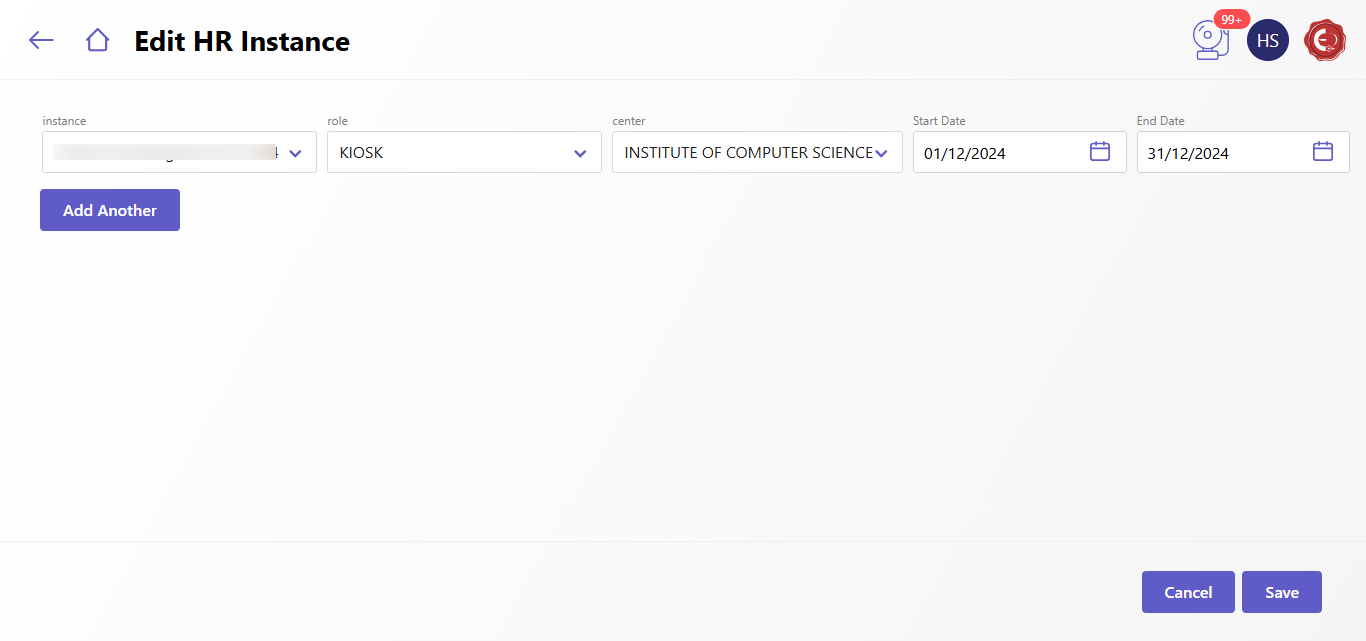
The Edit HR Instance page provides a form-based approach to map HR personnel to specific roles, centers, and events. Features include: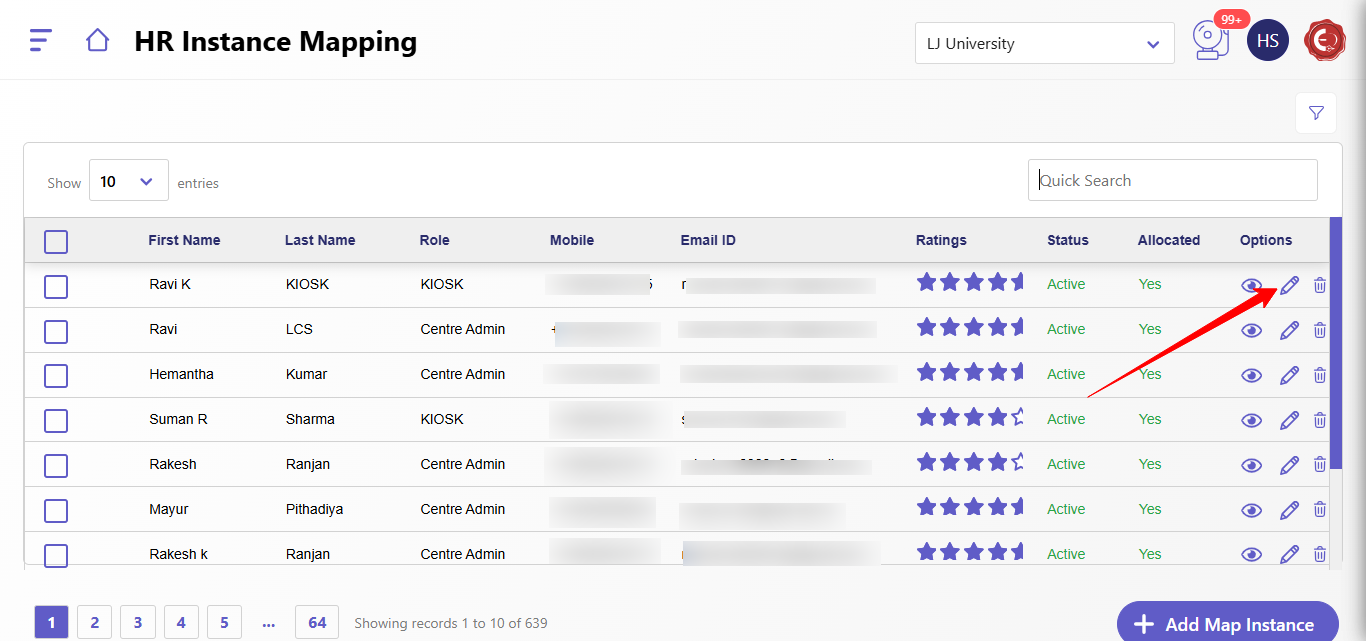
- Instance Selection:
- Dropdown menu to select the instance/event (e.g., "Online Screening Test OST 2024") to which the HR personnel is being assigned.
- Role Assignment:
- Users can choose the role for the HR personnel from a predefined list (e.g., KIOSK, Centre Admin).
- Center Mapping:
- Dropdown to select the center where the HR personnel will be deployed (e.g., "Institute of Computer Science").
- Date Range Configuration:
- Start Date: Specifies the beginning of the assignment period.
- End Date: Indicates the end of the assignment period.
- Add Another Instance:
- Users can assign the same HR personnel to multiple instances or roles by clicking the Add Another button, streamlining the mapping process.
- Save and Cancel:
- Save: Confirms and saves the new mapping or modifications made.
- Cancel: Exits the mapping interface without saving changes.
Bulk Actions
- Select multiple users using the checkboxes on the left.
- Perform bulk operations, such as assigning roles or instances, to streamline the process.
Created with the Personal Edition of HelpNDoc: Free iPhone documentation generator