The Import Tasks module allows you to import bulk data for specific modules such as posts, user registrations, etc., using predefined templates.
Follow the steps below to efficiently manage the import process.
Accessing the Import Task Module
- Navigate to the Import Tasks section from the system menu.
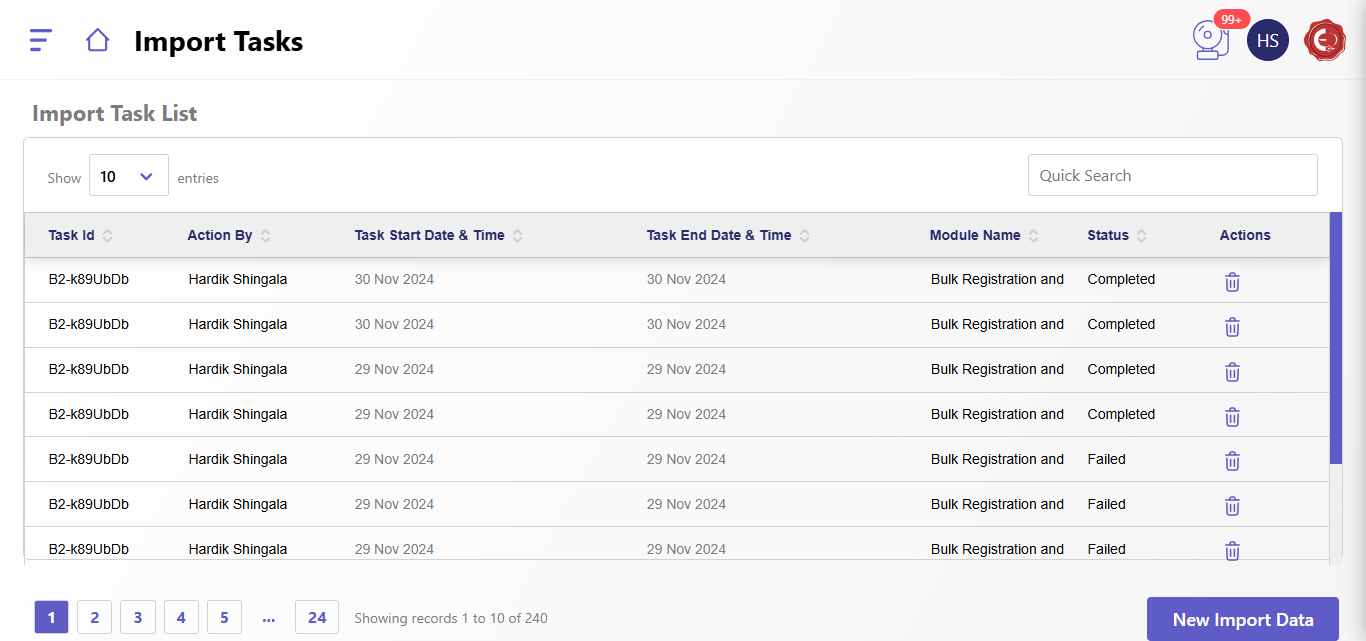
- The screen will display the Import Task List, showing previously created import tasks along with the following details:
- Task ID: Unique identifier for each import task.
- Action By: Name of the user who initiated the task.
- Task Start Date & Time: When the task was initiated.
- Task End Date & Time: When the task was completed.
- Module Name: The module for which the data is being imported.
Creating a New Import Task
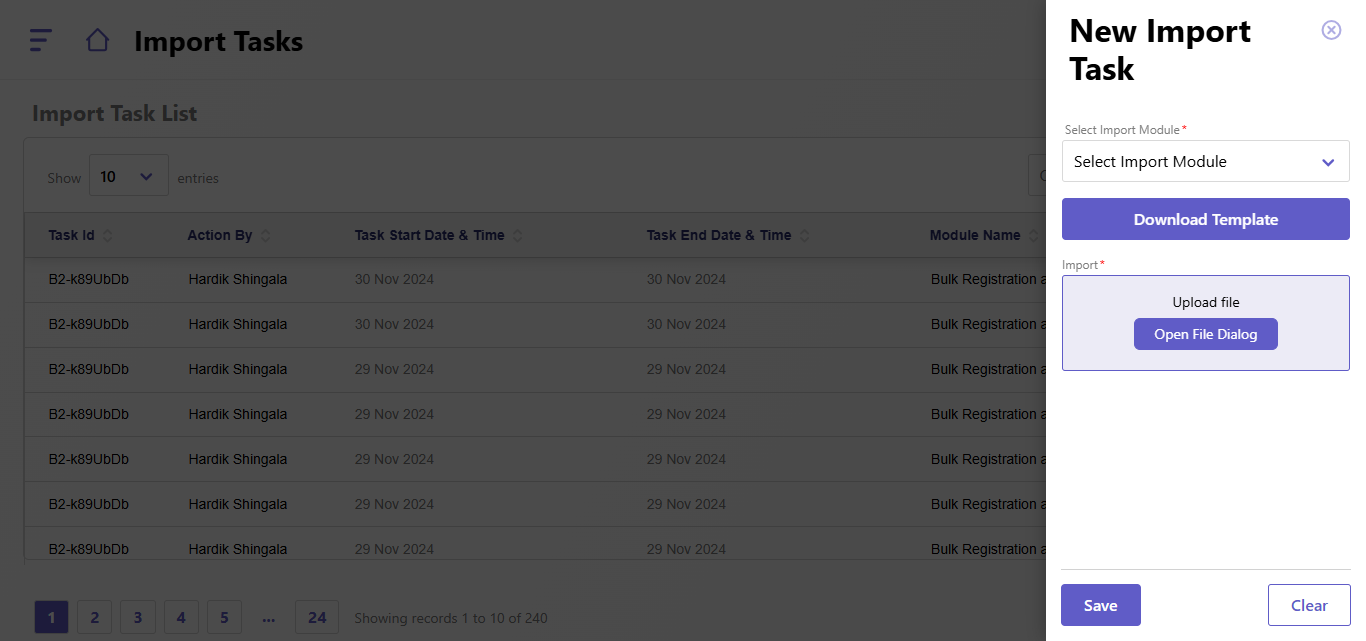
To create a new import task, follow these steps:
- Click on "New Import Task":
- On the right side, a form titled "New Import Task" will appear.
- Fill in the Details:
- Select Import Module:
- Choose the module for which you want to import data (e.g., Posts, Registrations).
- Select Instance:
- Pick the specific instance related to the selected module. This field is mandatory.
- If no instance is available, ensure it has been created beforehand.
- Download Template:
- Click the "Download Template" button to download the required template for the selected module.
- Fill out the template with the data you want to import. Ensure it adheres to the provided format.
- Upload File:
- Click "Open File Dialog" to upload the filled template.
- Only files in supported formats (e.g., .xlsx, .csv) can be uploaded.
- Import File:
- Once uploaded, verify the file name and ensure it’s correct.
- Save or Clear:
- Click "Save" to initiate the import task.
- Click "Clear" to reset the form if needed.
Created with the Personal Edition of HelpNDoc: Make Documentation a Breeze with HelpNDoc's Clean and Efficient User Interface