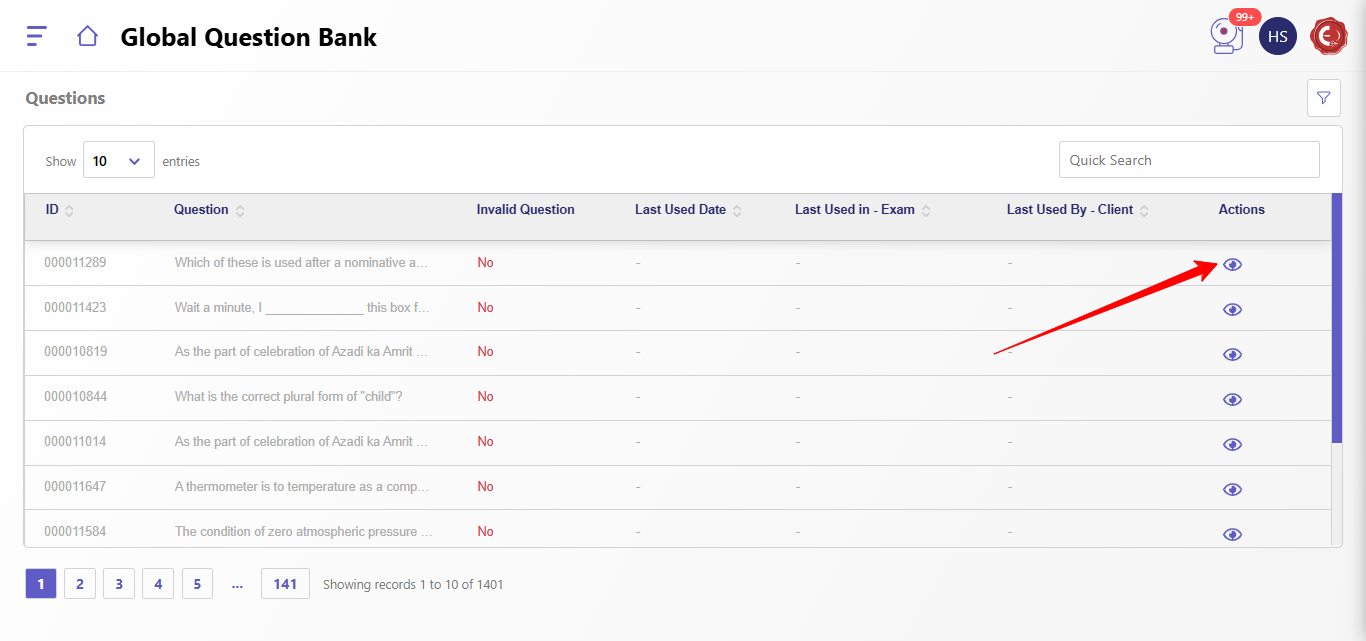
The "Global Question Bank" is a centralized repository for managing questions, featuring unique IDs, validity status, usage history, and client association. It includes search, filters, and a detailed view option for efficient question management and retrieval.
Below are the key features and functionalities of the Global Question Bank.
- Displays all questions in a tabular format with the following columns:
- ID: Unique identifier for the question.
- Question: A preview of the question text.
- Invalid Question: Indicates whether the question is marked as invalid (Yes/No).
- Last Used Date: Date when the question was last utilized in an exam.
- Last Used in Exam: Specifies the exam where the question was last used.
- Last Used By - Client: Displays the client associated with the last usage of the question.
- Actions: Provides options such as viewing detailed information about the question.
- Filters
- The Filter By panel allows users to refine the list of questions using various parameters:
- Last Used Date: Filter questions based on their last usage date.
- Last Used By: Filter questions by the user who last accessed them.
- Last Used In: Filter questions based on the exam they were used in.
- Author: Filter questions by the creator.
- Created On: Filter questions based on the date they were created.
- Subject: Filter questions by subject area (e.g., General Awareness, Mathematics).
- Category: Refine questions by sub-categories under a subject.
- Type: Filter questions by type (e.g., Multiple Choice, Fill in the Blanks).
- After setting the desired filters, click Apply to view the results or Clear to reset the filters.
- Search Functionality
- Use the Quick Search bar to find specific questions by entering keywords, phrases, or IDs.
- Pagination
- Navigate through pages of questions using the pagination controls at the bottom of the table. Options to show 10, 25, 50, or 100 entries per page are available.
Managing Questions
- Viewing Question Details
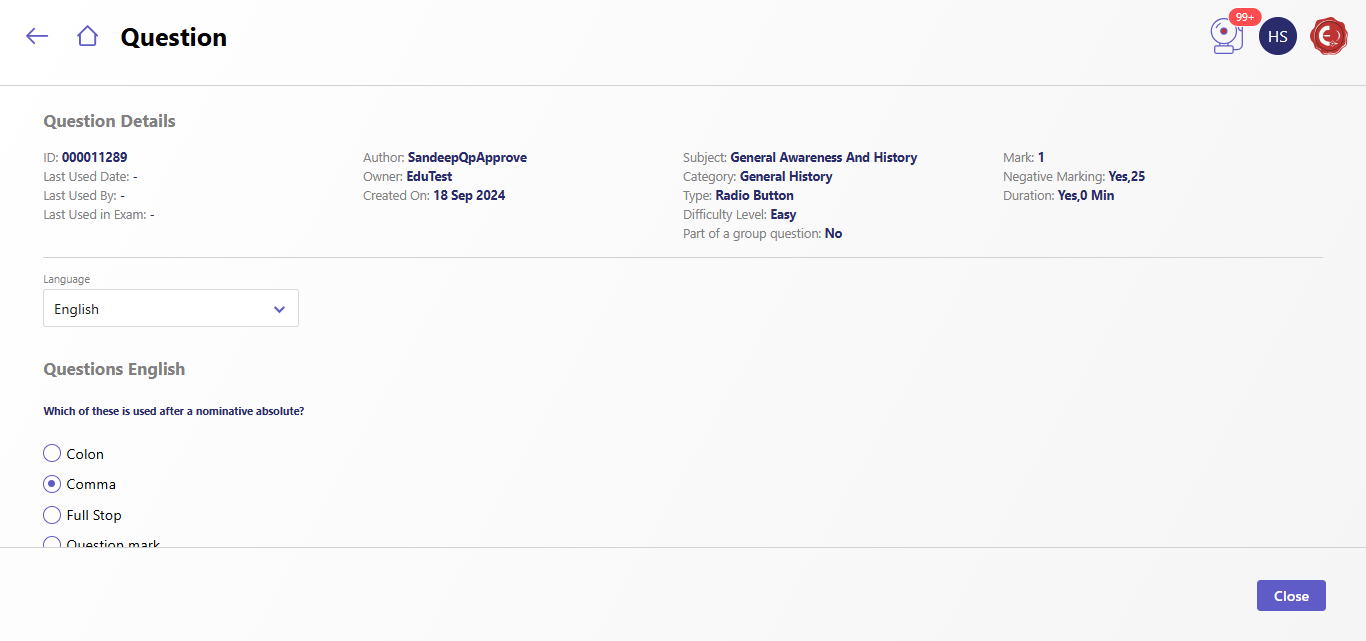
- Click the Eye Icon under the Actions column to open a detailed view of the selected question. The detailed view displays metadata (author, subject, category, etc.), scoring information, and the full question text with answer options.
- Marking a Question as Invalid
- You can mark questions as invalid if they are no longer relevant or have errors. This ensures the question is excluded from future exams.
Created with the Personal Edition of HelpNDoc: Say Goodbye to Documentation Headaches with a Help Authoring Tool