Note:
- In Any module, the first step is Select Instance (Project).
- This eligibility data will be used in the form creation based on the client requirement.
- For use that data in the form, you will have to use the predefined field in the form. for example: category field use for Catgeory (General, OBC etc.).
The Category Community interface allows you to create and manage different categories and communities within a reservation.
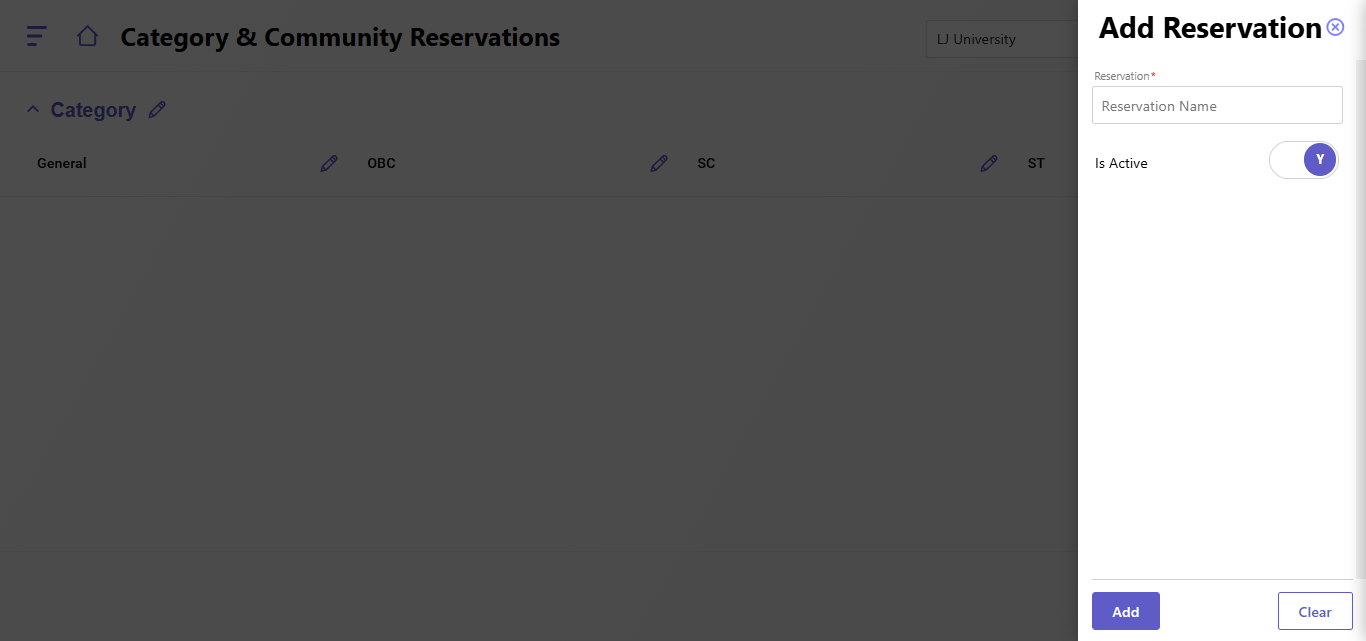
Adding a Reservation:
- Click Add Reservation: Click on the "Add Reservation" button.
- Enter Reservation Name: Enter a name for the reservation in the "Reservation Name" field.
- Set Reservation Status: Toggle the "Is Active" switch to activate or deactivate the reservation.
- Click Add: Click on the "Add" button to create the reservation.
Adding Categories and Communities:
- Click Edit Icon: Click on the edit icon next to the desired reservation.
- Add Category: Click on the "Add Category" button to add a new category.
- Enter Category Name: Enter a name for the category in the "Category Name" field.
- Add Communities: Click on the "Add Community" button within a category to add a new community.
- Enter Community Name: Enter a name for the community in the "Community Name" field.
- Save Changes: Click on the "Save" button to save your changes.
Created with the Personal Edition of HelpNDoc: Create help files for the Qt Help Framework