Note:
- In Any module, the first step is Select Instance (Project).
- The Payment Gateway feature is integrated into the Registration Page to securely process candidate payments during registration. It enables seamless transactions for exam fees and ensures proper tracking of payment statuses.
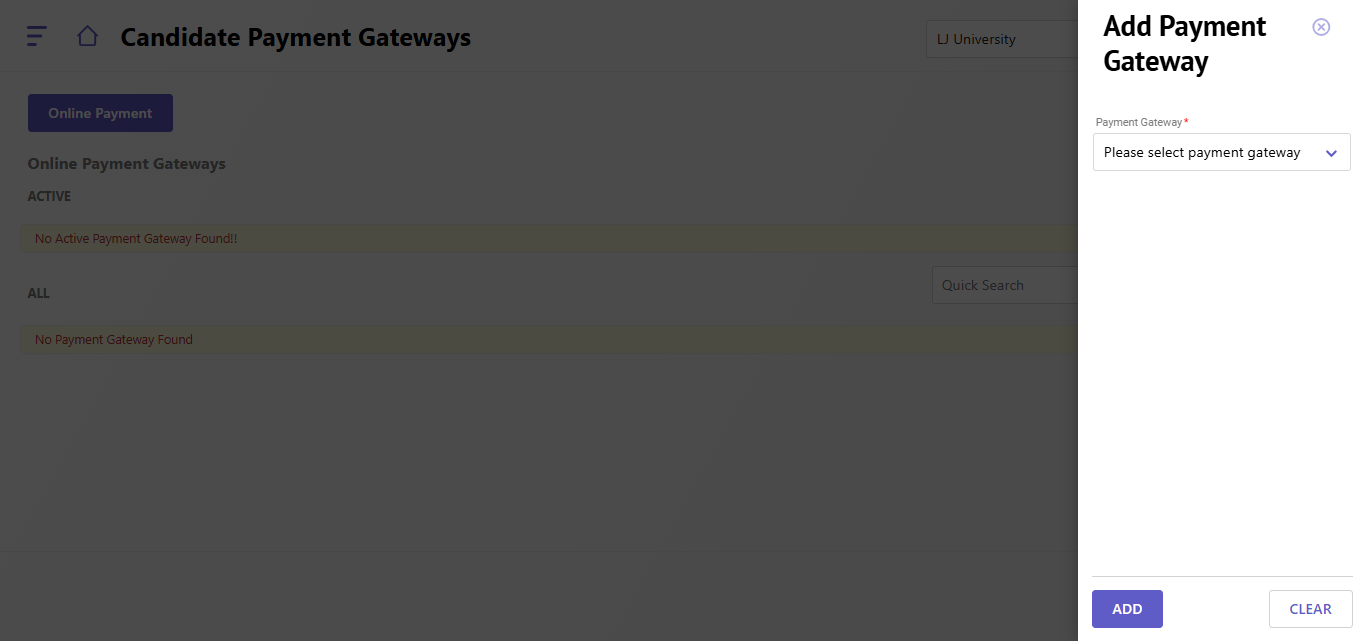
The Candidate Payment Gateways interface displays a list of active and inactive payment gateways. It also provides options to add new payment gateways and search for existing ones.
Adding a Payment Gateway:
- Access Candidate Payment Gateways: Log in to the system and navigate to the Candidate Payment Gateways section.
- Click Add Payment Gateway: Click on the "Add Payment Gateway" button.
- Select Payment Gateway: Choose the desired payment gateway from the dropdown menu.
- Provide Required Information: Enter any additional information required by the selected payment gateway, such as API keys, credentials, etc.
- Click Add: Click on the "Add" button to add the payment gateway.
Created with the Personal Edition of HelpNDoc: Simplify Your Help Documentation Process with a Help Authoring Tool