Note:
- In Any module, the first step is Select Instance (Project).
- This module is used to add all the eligibility of an exam, such as Post based stream, age criteria, category, fee categorization based on category and many more.
- This eligibility data will be used in the form creation based on the client requirement.
- For use that data in the form, you will have to use the predefined field in the form. for example: Stream data use Stream Field, Nationality data use Nationality field and many more.
Following are the steps to add the eligibility:
- Click on the 'Add Eligibility' Button
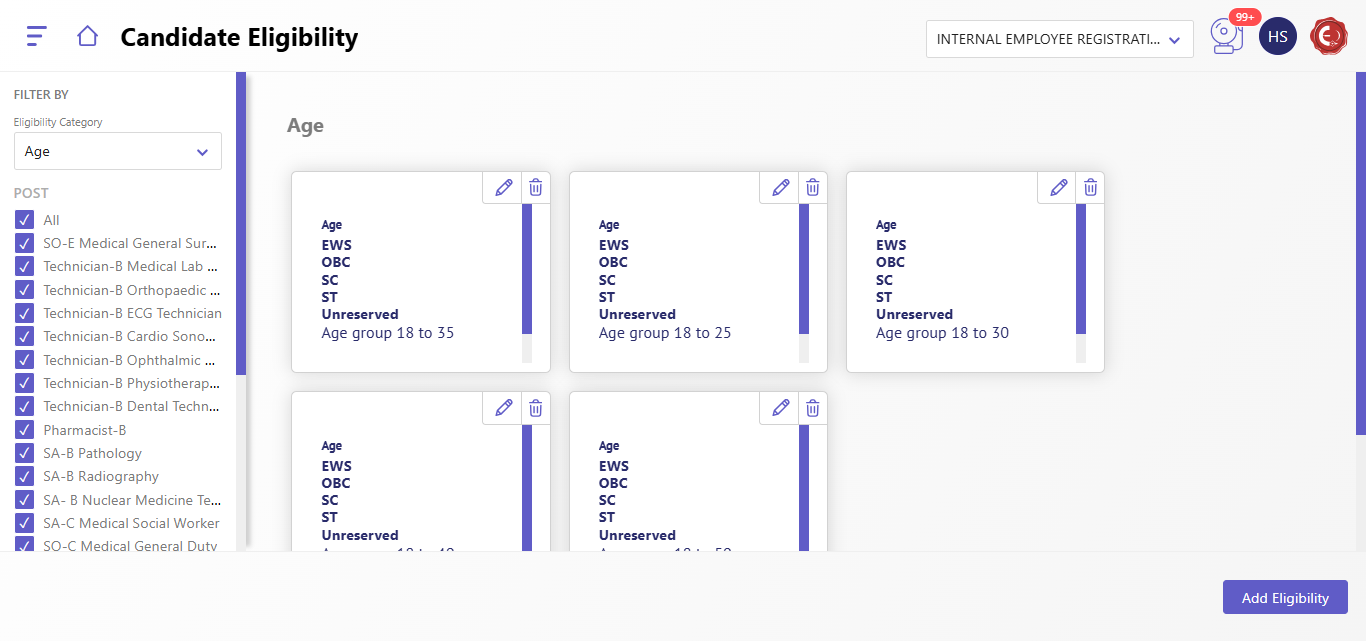
- On the Candidate Eligibility screen, locate the Add Eligibility button on the right-hand side.
- Click on it to open the eligibility configuration panel.
- Select Eligibility Category
- In the Add Eligibility panel, you will see a dropdown labeled Eligibility Category.
- Click on the dropdown to view the available categories (e.g., Age, Fees, Nationality, Qualification,Stream, etc.).
- Select the appropriate category for which you want to define eligibility.
- Define Eligibility Rules
- Once you select a category, additional fields will appear to configure specific rules or requirements for the selected category. Examples:
- Age: Specify a minimum and maximum age.
- Fees: Define applicable fees for different groups (e.g., SC/ST, General).
- Qualification: Choose required educational qualifications.
- Domicile: Specify required location-based criteria
- and many more
- Add Additional Conditions (Optional)
- To add more conditions for the same category or another category, click the Add Another button.
- Repeat the process of selecting a category and defining its rules.
- Assign Eligibility to Posts
- On the left-hand side, you will see a list of posts (e.g., IT1, MIS Executive, Operation Manager).
- Check the boxes for the posts where this eligibility criterion should apply.
- Review and Save
- Verify the details you’ve entered for the eligibility criteria.
- Click the Add button to save the eligibility rules.
- Confirm Changes
- The new eligibility rule will appear in the All Configured Eligibility list on the main screen.
- Use the Edit or Delete icons if adjustments are needed.
Created with the Personal Edition of HelpNDoc: Step-by-Step Guide: How to Turn Your Word Document into an eBook