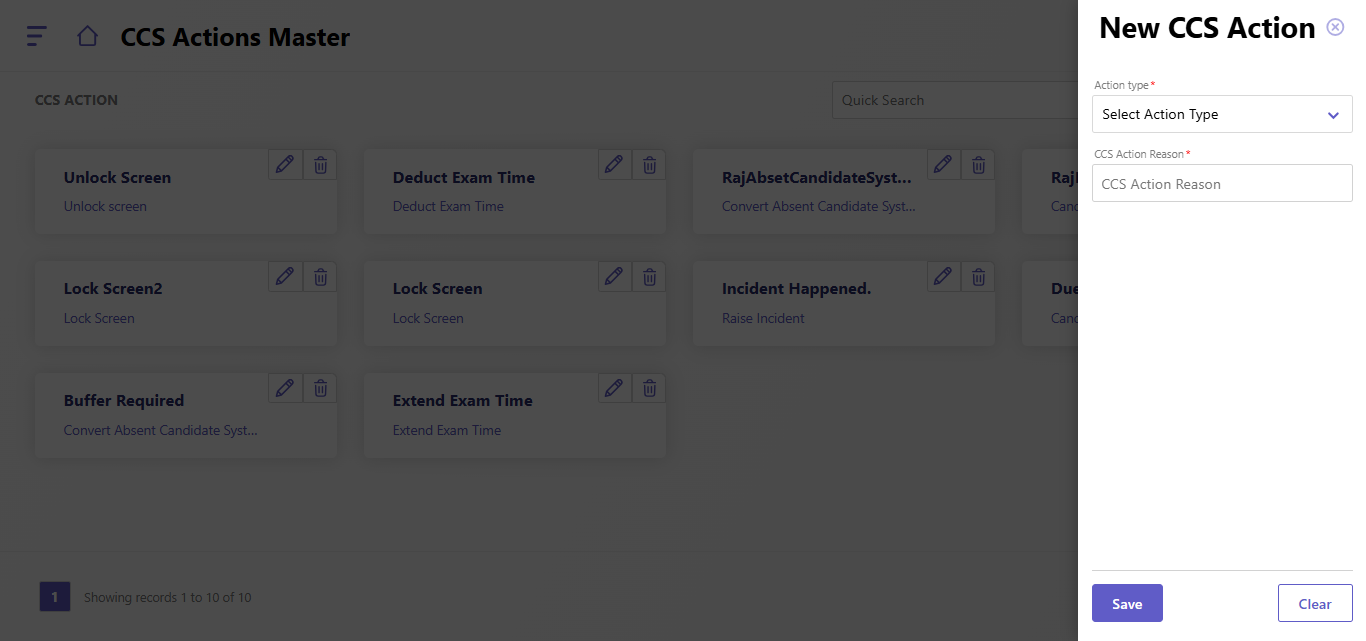
The "CCS Actions Master" screen provides a set of predefined actions such as unlocking or locking the screen, deducting or extending exam time, handling incidents, and managing buffer requirements. The "New CCS Action" form allows users to create a new action by selecting an action type and providing a reason for the action. This setup enables flexible and efficient management of candidate and exam-related scenarios.
Creating a New CCS Action:
- Access CCS Actions Master: Log in to the system and navigate to the CCS Actions Master section.
- Click New CCS Action: Click on the "New CCS Action" button.
- Select Action Type: Choose the appropriate action type from the dropdown menu (e.g., Unlock Screen, Deduct Exam Time, etc.).
- Enter CCS Action Reason: Provide a brief description or reason for the action in the "CCS Action Reason" field.
- Click Save: Click on the "Save" button to create the new CCS action.
Editing an Existing CCS Action:
- Click Edit Icon: Click on the edit icon next to the desired action.
- Modify Details: Edit the action type and CCS action reason as needed.
- Click Save: Click on the "Save" button to save the changes.
Created with the Personal Edition of HelpNDoc: Revolutionize Your Documentation Output with a Help Authoring Tool