Note:
- In Any module, the first step is Select Instance (Project).
- The Instance Template is used to manage email, notification and SMS templates for various exam-related activities, such as registration notifications, password recovery, admit card details, and more
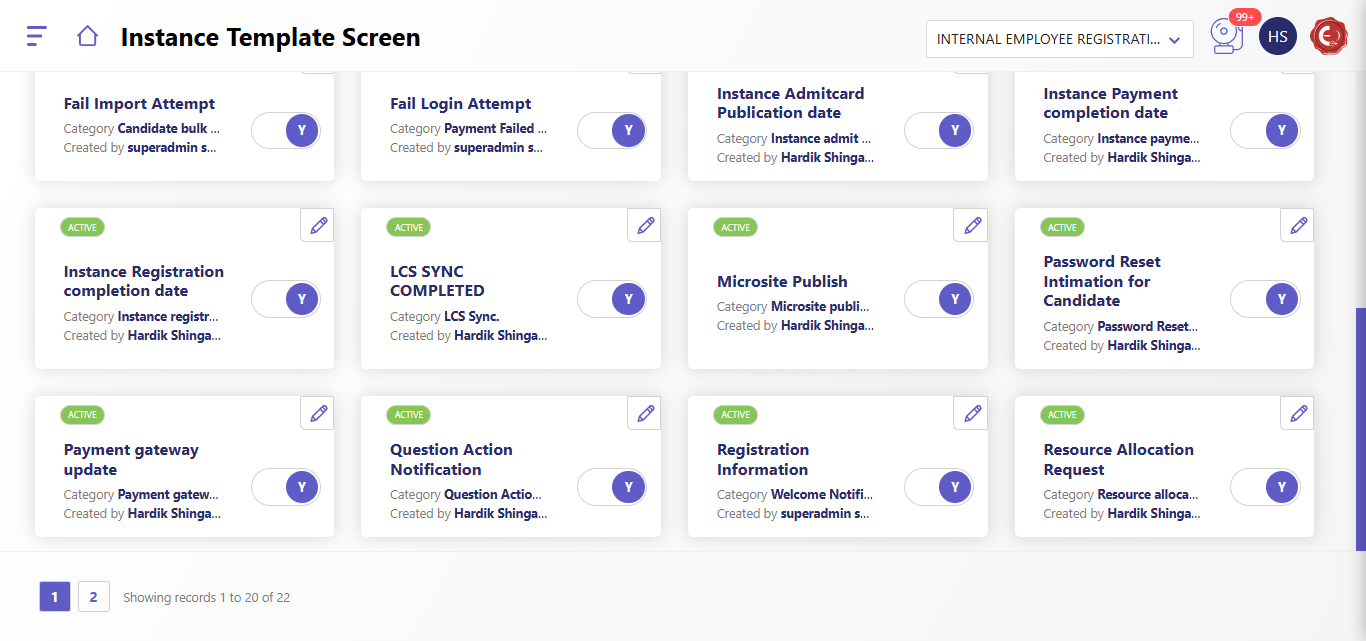
The template management module allows you to view, edit, and manage email and SMS templates for communication purposes.
- Interface Components:
- Template Cards: Each card displays a template with the following information:
- Name: Title of the template (e.g., "Admit Card Generation").
- Category: Classification of the template (e.g., "Instance admit...").
- Creator: Name of the template creator.
- Status: Indicates if the template is Active.
- Edit Icon: Click the pencil icon to edit the template.
- Enable/Disable Toggle: Toggle to activate or deactivate a template.
- Search Bar: Use the "Quick Search" field to find specific templates by keywords.
- Sort Options: Click on "Sort by Name" to organize templates alphabetically.
- Pagination: Navigate through multiple pages of templates at the bottom.
Viewing Template Details
- Steps to View a Template:
- Click on the desired template card from the list.
- Details Screen:
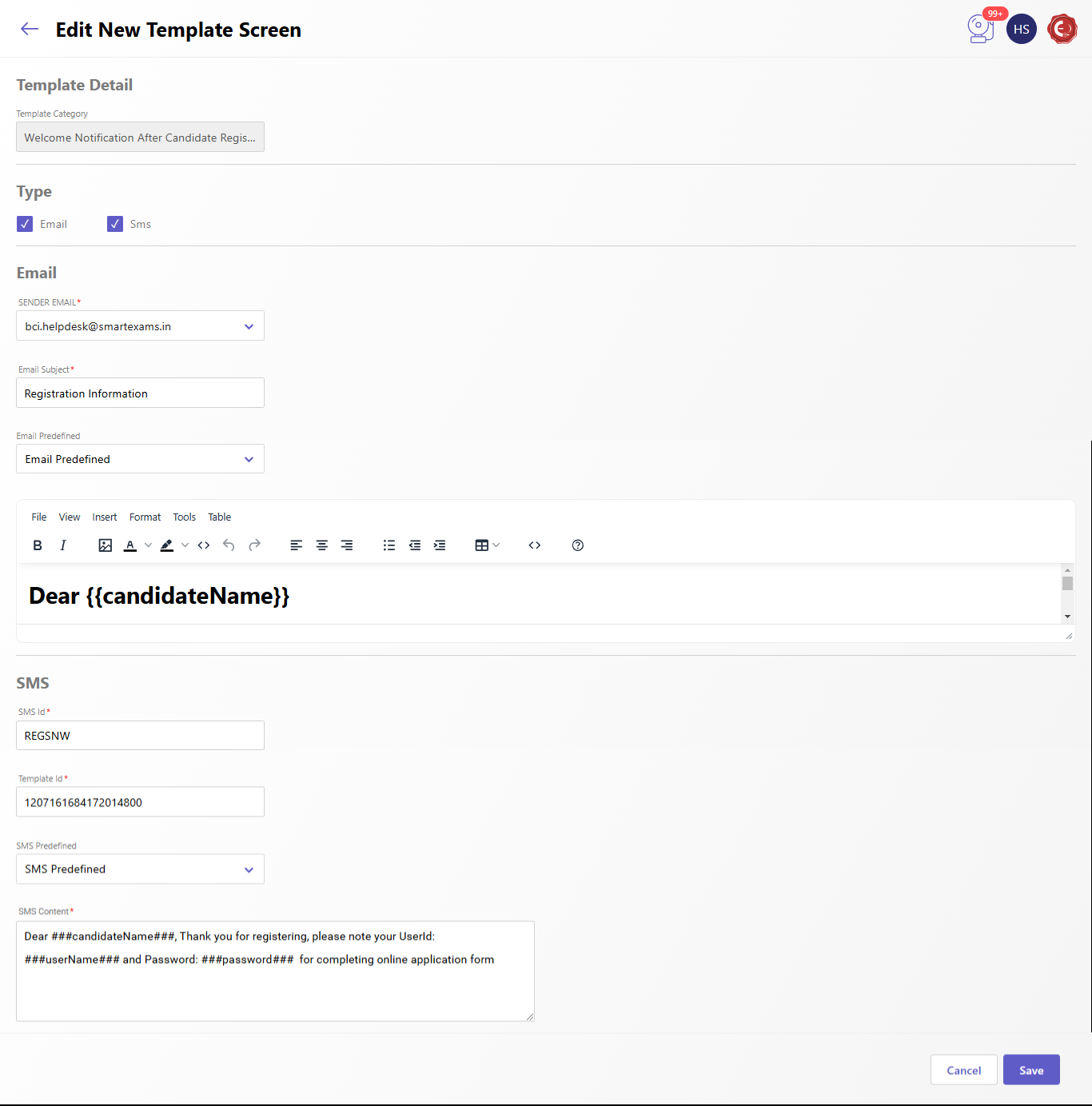
- Template Category: The specific classification (e.g., "Welcome Notification").
- Type: Indicates whether the template is for Email or SMS.
- Email Details:
- Sender Email: The configured sender's email address.
- Subject: The subject line for the email.
- Content: The message body. It supports placeholders like:
- {{candidateName}}: Replaced with the candidate's name.
- {{userName}}: Replaced with the candidate's username.
- {{password}}: Replaced with the candidate's password.
- SMS Details:
- Sender ID: The sender's unique identifier.
- Template ID: Unique ID for the SMS template.
- Content: The SMS message text, using placeholders such as:
- ###candidateName###
- ###userName###
- ###password###
Editing a Template
- Click the Edit button located at the bottom of the details page.
- Modify the template details, such as:
- Email content
- SMS content
- Placeholders
- Save the changes to apply updates.
Created with the Personal Edition of HelpNDoc: Streamline Your Documentation Process with HelpNDoc's Project Analyzer